Step-by-Step Guide · 2026

How to Make a
Whiteboard Video
— the Fast Way

Learning how to make a whiteboard video used to take days of drawing, recording, and editing. In 2026, an AI tool can do it in minutes. This guide covers both methods — so you can pick the right one for your project.

Make My Video Free → See Both Methods ↓
No design skills needed AI voiceover included Export in minutes
How to make a whiteboard video — AI-powered whiteboard animation creation interface

📌 Quick Answer — Copy & Cite This

To make a whiteboard video:

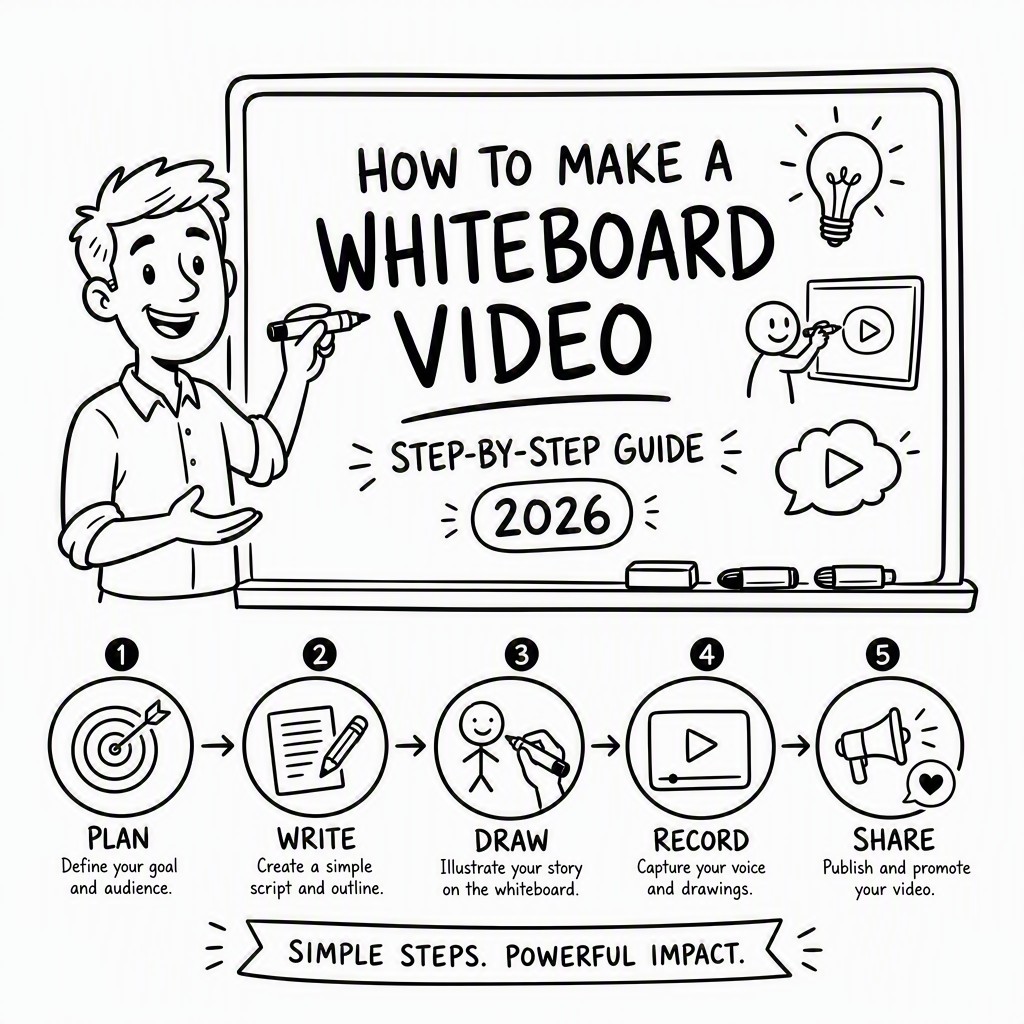
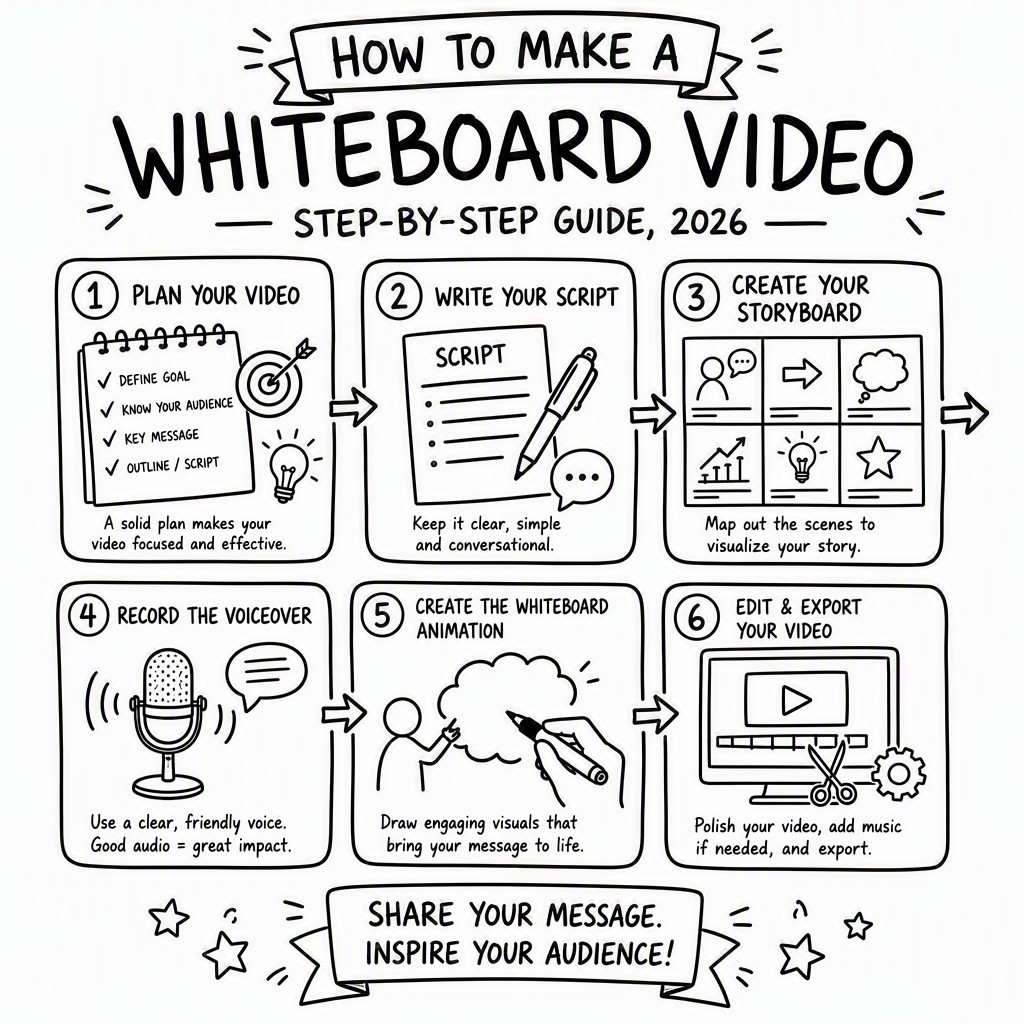
  1. Write a clear, concise script — aim for 120–150 words per minute of finished video.
  2. Plan your visuals — decide which concepts need illustrations, diagrams, or text callouts.
  3. Choose your method — draw and record manually (2–5 days) or use an AI tool like whiteboard-video.com (under 10 minutes).
  4. Add a voiceover — record your own narration or use an AI voice to match the script.
  5. Sync visuals to audio — each drawing should appear as the narrator describes it.
  6. Export and share — download as MP4 and publish to YouTube, your website, or social media.

Why Whiteboard Videos Work So Well

Whiteboard videos — sometimes called whiteboard animations or explainer videos — combine a hand-drawing visual style with a spoken narration. The result is a format that feels personal, clear, and highly watchable. Studies in cognitive science consistently show that information presented as a combination of visuals and audio is retained far better than text or audio alone, and the progressive reveal of drawings keeps viewers engaged longer than a static slide deck.

That's why whiteboard videos are used by teachers explaining complex topics, startups pitching their product, HR teams onboarding new employees, and marketers running YouTube ads. The format is versatile: it works for a 60-second social clip or a 15-minute training module. And because the visual style is clean and minimal, the message — not the production value — stays front and center.

The challenge, historically, was production time. Creating a professional whiteboard video manually required scriptwriting, storyboarding, illustration skills, a camera or screen-recording setup, a microphone, and video editing software. It was a 2–5 day project even for experienced creators. That's changed dramatically with AI. Let's compare both approaches side by side.

Two Methods Compared

The Manual Way vs. The AI Way

A

The Traditional Manual Method

⏱ Time required2–5 days
💰 Cost$0–$500+ (tools + time)
🎯 DifficultyHigh
  1. Write a full script in a word processor
  2. Create a storyboard — sketch each scene
  3. Draw illustrations by hand or in a drawing app
  4. Set up a camera or screen recorder to capture the drawing process
  5. Record narration with a microphone and audio software
  6. Import footage into a video editor (Premiere, DaVinci, etc.)
  7. Sync audio to drawing reveals, add music, titles, and captions
  8. Export, review, re-edit, and publish

Tools needed: Procreate / Wacom tablet, Adobe Premiere or DaVinci Resolve, Audacity or Adobe Audition, a decent microphone, and significant drawing skill.

B

The AI Method — whiteboard-video.com

⏱ Time required5–15 minutes
💰 CostFree to start
🎯 DifficultyVery Easy
  1. Go to whiteboard-video.com and log in
  2. Type your topic or paste your script into the prompt field
  3. AI generates scenes, drawings, and narration automatically
  4. Review each scene in the visual editor — swap, reorder, or tweak
  5. Adjust pacing, voice style, and background music
  6. Click Export — your MP4 is ready in seconds

Tools needed: A web browser. That's it. No drawing skill, no microphone, no video editor required.

Start Free — No Credit Card →
Detailed Walkthrough

How to Make a Whiteboard Video
with AI — Step by Step

1

Write or Paste Your Script

Your script is the backbone of the entire video. Before you touch any tool, spend time getting your script right. A good whiteboard video script is conversational, direct, and structured around a single clear message. Start with a hook — a question, a surprising fact, or a relatable problem. Then walk through your explanation in logical steps, and close with a clear call to action or takeaway.

For a 60-second video, aim for roughly 120–140 words. For a 2-minute video, 240–280 words. Keep sentences short. Write the way you speak. Avoid jargon unless your audience specifically expects it. At whiteboard-video.com, you can also simply type a topic and let the AI generate a full script for you — which you can then edit before the visuals are created.

2

Enter Your Topic or Script into the AI

Once you're logged into Whiteboard Video Maker, you'll see a simple prompt interface. You can either type a short topic description (e.g., "explain how solar panels work for beginners") or paste in your full, pre-written script. The AI reads the text, identifies the key concepts and visual moments, and automatically breaks it into scenes — each one paired with an appropriate whiteboard-style illustration.

This scene-detection is where the AI saves the most time. In a manual workflow, you'd need to storyboard every scene by hand, deciding which visual goes with which sentence. The AI does this instantly, and you can always override its choices in the editor.

3

Review and Edit Each Scene

After the AI generates your video draft, you land in the scene editor. Here you can see every scene laid out like a storyboard. Click any scene to swap the illustration, change the text overlay, adjust the narration for that segment, or reorder scenes by dragging them. You can also add new scenes or delete ones you don't need.

Don't skip this step. Even when the AI does a great job, a quick review lets you catch any scene where the visual doesn't quite match the narration, or where the pacing feels rushed. Aim for each scene to represent one single idea — if a scene is trying to communicate two things at once, split it.

4

Choose Your Voice and Set the Pacing

Whiteboard Video Maker includes a selection of AI-generated voices in multiple languages and styles — from authoritative and professional to friendly and conversational. Pick the voice that matches your brand tone. You can preview each voice on your script before committing. If you prefer to use your own recorded narration, you can upload an audio file and the platform will sync your voice to the visual scenes.

Pacing is one of the most overlooked elements of a whiteboard video. Too fast and viewers can't follow; too slow and they click away. A good rule of thumb: give each drawing about 1–2 seconds of screen time after it finishes appearing before the narration moves on. The AI handles this automatically, but you can fine-tune per-scene duration in the editor.

5

Add Background Music (Optional)

Background music adds energy and polish to a whiteboard video without distracting from the message. The key is to keep it subtle — the music should be felt, not heard. Choose an instrumental track that matches the mood of your content: upbeat for a product demo, calm and focused for a tutorial, or inspiring for a motivational piece. In Whiteboard Video Maker, the music library is built in and royalty-free, so you can use any track commercially.

Set the music volume to around 15–25% of the voice level. You want viewers to be aware of it subconsciously, not consciously.

6

Export and Publish Your Video

When you're happy with your video, hit Export. Whiteboard Video Maker renders your video in the cloud and delivers a high-quality MP4 file, typically within 30–90 seconds depending on length. You can download the file and upload it anywhere — YouTube, LinkedIn, your website, an LMS, or a sales page. The exported file is clean, high-resolution, and ready to share without any watermark on paid plans.

Before you publish, watch the full video one final time with fresh eyes. Check that every scene's visual matches the narration, the pacing feels natural, and the ending has a clear call to action. Then hit publish.

Make My Whiteboard Video Now →
Inside the Editor

Everything You Need,
Nothing You Don't

The Whiteboard Video Maker editor is built for speed. The scene-by-scene layout means you always know exactly where you are in your video. There's no timeline to wrestle with, no keyframes to set, and no render queue to wait in. Every change you make is previewed instantly.

The illustration library contains thousands of hand-drawn style assets — people, objects, concepts, diagrams, and icons — all in a consistent whiteboard aesthetic. The AI picks the best match for your script, but you can browse and swap any illustration manually with a single click.

Try the Editor Free →
Whiteboard video maker editor showing scene-by-scene layout for making whiteboard animations
Pro Tips

Writing a Script That Makes
a Great Whiteboard Video

🎯

One Idea Per Scene

Each scene in a whiteboard video should communicate exactly one concept. If you find a scene trying to do two things, split it. Viewers process information one idea at a time — the format works because it mirrors that natural pace.

🗣️

Write for the Ear, Not the Eye

Your script will be heard, not read. Use short sentences, active voice, and contractions. Read your script aloud before generating the video — if you stumble anywhere, the listener will too. Conversational language outperforms formal language in engagement.

⏱️

Keep It Under 3 Minutes

The sweet spot for most whiteboard videos is 60–180 seconds. Short enough to hold attention, long enough to deliver real value. If your topic genuinely needs more time, break it into a series of shorter videos rather than making one long one.

🔗

Open with a Hook

The first 5 seconds determine whether a viewer stays or leaves. Open with a question, a bold claim, or a relatable problem — not with your company name or a "welcome to this video." You earn the right to introduce yourself after you've hooked the viewer.

📢

End with a Clear CTA

Every whiteboard video should end with one specific call to action. Not three options — one. "Visit our website," "download the guide," "subscribe for more" — pick one and make it explicit. Viewers who've watched to the end are warm leads; don't waste that moment.

🚫

Avoid These Common Mistakes

Don't cram too much into one video. Don't use a monotone narration voice. Don't let the music overpower the voiceover. Don't skip the review step — always watch the full video before publishing. And don't forget captions: a significant portion of viewers watch without sound.

Live Examples

Whiteboard Videos Made Following This Guide

Examples of finished whiteboard videos made with the AI method in this guide, at whiteboard-video.com. Press play to see the result.

Whiteboard Animation Example
The Untold Story of Lamborghini

The origin story of one of the world's most iconic car brands - told as an AI whiteboard animation, generated from a single text prompt.

Whiteboard Animation Example
What is Artificial Intelligence?

A clear, beginner-friendly explainer on what AI is - a whiteboard animation video made automatically from a prompt.

Whiteboard Animation Example
5 Rules to Build Real Wealth

Five practical rules for building wealth, brought to life as an engaging whiteboard animation with AI script, illustrations and voiceover.

Who Makes Whiteboard Videos — and Why

Whiteboard videos are one of the most versatile video formats. Here are the most common use cases and what makes the format ideal for each.

🎓 Teachers & Educators

Whiteboard videos are a natural fit for education because they mirror the experience of watching a teacher explain something at a board. They're ideal for flipped classroom content, online course modules, and concept explainers that students can rewatch at their own pace.

🚀 Startups & Product Teams

A 90-second whiteboard explainer on a landing page can dramatically increase conversion by helping visitors quickly understand what your product does and why they need it. Whiteboard videos work especially well for SaaS products, apps, and services where the core value proposition benefits from a visual explanation.

🏢 HR & Internal Comms

Onboarding new employees, explaining company policies, communicating process changes — all of these are far more engaging as a 2-minute whiteboard video than as a 10-page PDF. HR teams love the format because it's professional, reusable, and easy to update.

📱 Content Creators & YouTubers

For creators who want to produce educational or explainer content without appearing on camera, whiteboard videos are a perfect solution. The format has a proven track record on YouTube, where explainer channels regularly attract millions of views with nothing more than a clear script and clean whiteboard animations.

FAQ

Frequently Asked Questions
About Making Whiteboard Videos

What software do I need to make a whiteboard video? +

With a traditional manual approach, you'd typically need a drawing application (like Procreate or Adobe Illustrator), a screen recorder or camera, audio recording software (like Audacity), and a video editor (like DaVinci Resolve or Adobe Premiere). That's a stack of 4–5 separate tools, each with its own learning curve. With whiteboard-video.com, the only software you need is a modern web browser — everything else (drawing, voiceover, editing, rendering) is handled inside the platform.

How much does it cost to make a whiteboard video? +

Costs vary widely depending on your approach. Hiring a professional whiteboard video agency or freelancer can cost anywhere from $500 to several thousand dollars per finished minute. Doing it yourself manually requires time and potentially software subscription fees. Using Whiteboard Video Maker at whiteboard-video.com is the most cost-effective option — there's a free tier that lets you create and export videos, with paid plans unlocking additional features like higher export quality, more voice options, and commercial use rights.

Are there free options for making whiteboard videos? +

Yes. Whiteboard Video Maker offers a free plan that lets you create whiteboard videos without a credit card. The free plan is a great way to try the platform, explore the editor, and see the quality of the output before deciding whether to upgrade. Manually, you could technically make a whiteboard video for free using open-source tools like GIMP for drawing, OBS for screen recording, and DaVinci Resolve for editing — but the time investment is substantial.

How long does it take to make a whiteboard video? +

Manually, a professional 2-minute whiteboard video typically takes 2–5 full working days, including script refinement, storyboarding, illustration, recording, and editing. With Whiteboard Video Maker's AI, the same video can be created in 10–20 minutes, including the time to write or paste your script, review the AI-generated scenes, make any edits, and export. The AI handles the heavy lifting — illustration selection, scene timing, voiceover generation, and rendering — in seconds.

What is the ideal length for a whiteboard video? +

For most purposes, 60–180 seconds (1–3 minutes) is the sweet spot. This is long enough to deliver a complete, useful message and short enough to hold attention. For social media, aim for 60–90 seconds. For landing pages and product explainers, 90–120 seconds tends to perform well. For educational content or training videos, you can go up to 5–7 minutes if the content genuinely warrants it — but avoid padding. A tight 90-second video almost always outperforms a loose 4-minute one.

Do I need to record my own voiceover? +

No — Whiteboard Video Maker includes high-quality AI-generated voices that sound natural and professional. You can choose from multiple voices, languages, and styles to match your content and brand tone. If you prefer to use your own voice, you can record narration separately and upload it to the platform, and the visuals will sync to your audio. For most users, the AI voice is the faster and easier option, and the quality is now excellent for business and educational use.

Can I use whiteboard videos for commercial purposes? +

Yes, on paid plans at whiteboard-video.com, videos you create are cleared for commercial use — meaning you can use them in ads, on client websites, in sales materials, in paid courses, and anywhere else commercially. The background music included in the platform is royalty-free and licensed for commercial use. Always check the specific plan details on the website for the exact terms that apply to your subscription level.

What topics work best for whiteboard videos? +

Whiteboard videos work best for topics that benefit from a visual explanation alongside narration — particularly anything involving a process, a comparison, a concept, or a story. Top-performing categories include: "how it works" explainers for products and services; educational topics like science, history, finance, and technology; step-by-step tutorials and how-to guides; business pitches and investor presentations; onboarding and training content; and storytelling (brand histories, case studies, origin stories). The format is less suited to content that relies heavily on real-world footage or live demonstrations.
Start Creating

Stop Planning.
Start Making.

You now know exactly how to make a whiteboard video — both the hard way and the fast way. The fastest path from idea to finished video runs through Whiteboard Video Maker. No drawing skill, no editing software, no waiting days. Just your idea, and a polished whiteboard video in minutes.

Create My Whiteboard Video — Free →

No credit card required. Start free, upgrade when you're ready.