Updated October 2026 · 7 min read
- write a short script, split into scenes of one or two sentences;
- pick one picture per scene (your own, or a free stock photo);
- open a free whiteboard video maker such as the Whiteboard Video Free Studio;
- add each scene's text and picture, choose a free voice and a 16:9 or 9:16 shape;
- create the video — each picture is drawn by hand on screen in time with the voiceover;
- download the MP4 and publish it.
What is a whiteboard video?
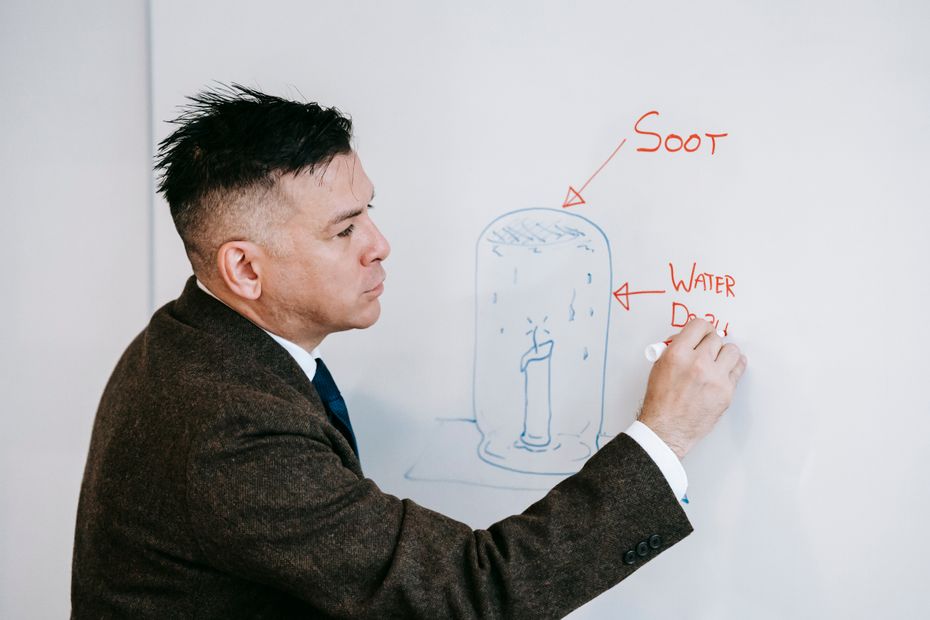
A whiteboard video explains an idea while a hand draws it on a white background, with a voice narrating each step. The drawing holds attention and the narration does the teaching, which is why whiteboard videos are popular for lessons, product explainers and social media. Making one used to mean hiring an illustrator, an animator and a voice actor. Today you can make one free in a browser.
What you need
- A topic and roughly what you want to say.
- One picture per scene — photos, diagrams or screenshots you're allowed to use, or free stock photos.
- A free whiteboard video maker. This guide uses the Whiteboard Video Free Studio (5 free videos a day, free voiceover, no credit card).
Step 1: Write a short script, scene by scene
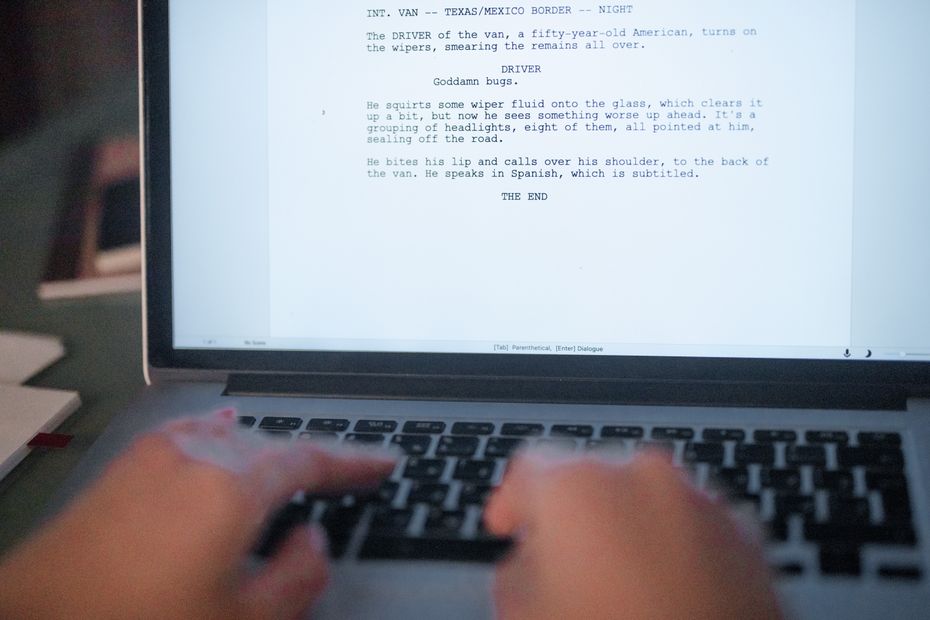
Write the script as the voice will say it, then split it into scenes of one or two sentences. Each scene gets one picture, so a new scene should start whenever the idea changes. Aim for about 150 words per minute of video — a 1-minute video is about 150 words and 6 to 10 scenes.
Good structure for almost any topic: hook (a question or surprising fact) → the problem → the explanation, one idea per scene → a short summary or call to action.
Step 2: Choose one picture per scene
Pick a picture that shows what the scene says. Simple images with a clear subject draw best: an object, a person doing something, a diagram. In the Free Studio you can upload your own picture or search free stock photos without leaving the editor — every result is free to use, with the photographer credited.
Only upload images you own or have permission to use. Stock photos inside the Studio come from Pexels and are free to use.
Step 3: Add your scenes in the Free Studio
Open the Free Studio, give the video a title, and add a scene for each part of your script: paste the narration, then choose the picture. The length counter shows how long your video will be (up to 5 minutes free).
Step 4: Pick a free voice and the video shape
Choose one of 14 free voices — English (US and UK), Spanish, French, Italian, Portuguese, Hindi or Chinese — and press play to hear it. Write the script in the same language as the voice. Then choose 16:9 for YouTube and websites, or 9:16 for YouTube Shorts, Instagram Reels and TikTok, and pick a drawing hand.
Step 5: Create and download your video
Press Create free video. Each picture is sketched by a hand on screen and then revealed in full colour while the voice reads the scene. A short video is usually ready in a minute or two; you can leave the page and find it in My Videos. Download the MP4 — free videos are kept for 7 days.
Step 6: Publish it
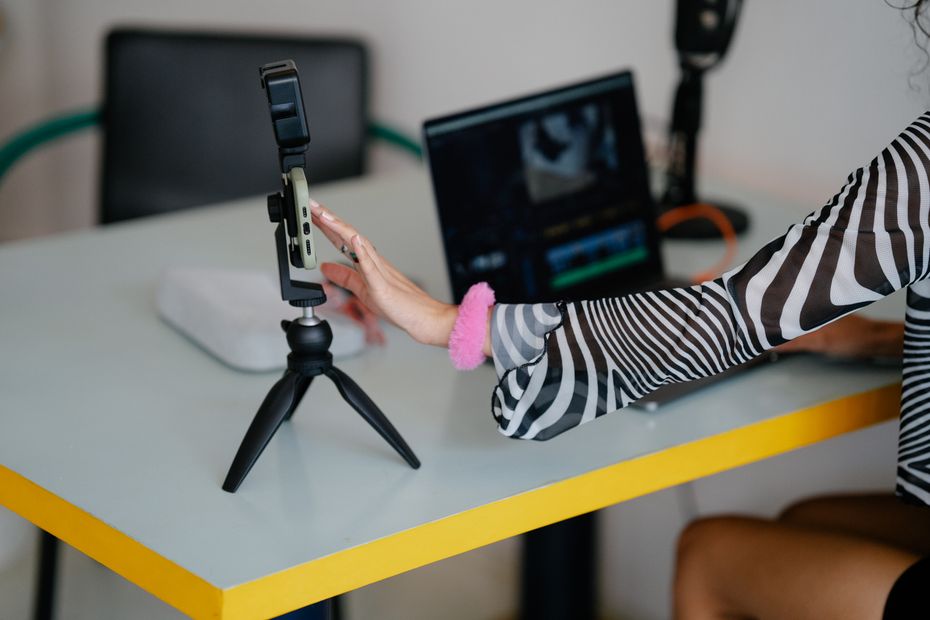
Upload the MP4 to YouTube, your website, a course platform or social media. Add a title and description that say what viewers will learn — and if it's a lesson, chapters make it easier to navigate.
Tips for a better free whiteboard video
- One idea per scene. Short scenes keep the drawing moving and viewers watching.
- Start with a hook in the first scene — a question, a number or a promise.
- Use clear, uncluttered pictures. Busy photos take longer to draw and are harder to read.
- Read your script out loud before creating the video; if you stumble, the voice will too.
- Keep it under 2 minutes for social media; save 3–5 minutes for lessons and tutorials.
Other free ways to make a whiteboard video
- Let AI do it once. Every Whiteboard Video account gets one free AI-generated video: give it a prompt, a PDF or a link and it writes, draws and narrates a 1-minute video.
- Free trials of manual editors. Tools like VideoScribe offer a short free trial, but you place every image and record the voice yourself.
- Film a real whiteboard. Free if you have a whiteboard and a phone — but it takes time to draw, film and edit cleanly.
How the free offers compare:
| Tool | What you get free | Watermark | Download |
|---|---|---|---|
| Whiteboard Video | 5 videos every day (up to 5 min each) + 1 AI-generated video | Small | Yes |
| Golpo AI | One 1-minute video | Yes | No |
| AnimatedBoard | 1 minute of video, once | No | Yes |
| VideoScribe | 7-day trial, 3 downloads | Yes | Yes |
| Instadoodle | No free version (refund guarantee only) | — | — |
Based on each tool's public pricing page, checked October 2026. Offers change — check before you decide.
Common mistakes to avoid
- Scenes that are too long — split anything over three sentences.
- Pictures that don't match what the voice says at that moment.
- Forgetting to download: free videos are deleted after 7 days.
- Using images you don't have the rights to.
Summary
- Write a short script and split it into one- or two-sentence scenes (about 150 words per minute).
- Give every scene one clear picture — your own or a free stock photo.
- Use the Free Studio to add a free voiceover and have each picture drawn by hand: 5 free videos a day, up to 5 minutes.
- Download the MP4 within 7 days and publish it anywhere.