
Updated October 2026 · 8 min read
- define one learning goal — what should people be able to do after watching?
- write a short script (about 150 words per minute), one step per scene;
- pick a format: whiteboard animation, screen recording or filmed demo;
- add a visual for every step and a clear voiceover;
- keep it under 5 minutes — split bigger topics into a series;
- export an MP4, upload it to your LMS, intranet or YouTube, and add a quick check question.
Why training videos work better than documents
People skim policies and manuals but they watch short videos. A training video shows a process in the order it happens, the voiceover explains why each step matters, and anyone can rewatch it at the moment they need it. Videos also keep training consistent: every new hire hears the same explanation, no matter who onboards them.
Step 1: Set one clear learning goal
Write one sentence starting with "After this video, the viewer can…". For example: "After this video, a new cashier can process a refund in under two minutes." Everything in the video should serve that goal. If you have three goals, you have three videos.
Step 2: Write a short script, step by step
Write the script the way you'd explain it to a colleague standing next to you. Plan about 150 words per minute and split it into scenes — one action or idea per scene. A structure that works for almost every training topic:
- Why it matters (1 scene): the problem or risk this training prevents.
- The steps (one scene each): do this, then this — with the reason in one short sentence.
- Common mistakes (1–2 scenes): what usually goes wrong and how to avoid it.
- Recap (1 scene): the steps again in one breath, plus where to get help.
Already have the content in a document? Don't rewrite it — an AI video maker can read your SOP, policy or slides (as a PDF or Word file) and draft the script for you. Then you just edit.

Step 3: Choose the right format
| Format | Best for | Effort |
|---|---|---|
| Whiteboard / animated explainer | Concepts, policies, processes, compliance, soft skills, onboarding | Low — AI can draw and narrate it |
| Screen recording | Software click-throughs | Low–medium |
| Filmed demo | Physical tasks: equipment, products, hands-on skills | High — camera, lighting, editing |
| Talking head | Leadership messages, welcomes | Medium |
For most "explain how and why" training, a whiteboard animation is the fastest to make and the easiest to update: when the process changes, you edit the script and regenerate — no reshoot.
Step 4: Add visuals and a voiceover
Every scene needs one picture that shows what the voice is saying. Simple, uncluttered visuals work best. For the voice, use a clear, calm narrator — an AI voice is fine and makes updates painless. Write the script in the language of your learners; AI voices can narrate in many languages, so you can make the same training for each team.
Step 5: Create the video
Here is the fastest route with Whiteboard Video:
- Upload your document or describe the topic. Paste the steps, upload the SOP as a PDF or Word file, or give a link to the policy page.
- Check the script. AI writes a scene-by-scene script; edit wording, order and terms your team uses.
- Pick a voice, length and shape. Landscape for an LMS or intranet, portrait for mobile.
- Generate. Each scene is drawn by hand on screen in time with the narration. Download the MP4.
Prefer to supply your own screenshots or photos (say, of your actual equipment)? The Free Studio lets you write each scene and attach your own picture — free, 5 videos a day.
Step 6: Publish, check understanding, update
- Upload the MP4 to your LMS, intranet, Google Drive or an unlisted YouTube video.
- Add one or two check questions after the video — a short quiz turns watching into learning.
- Name videos by task ("How to process a refund") so people can find them later.
- Review each video when the process changes; regenerating an animated video takes minutes.
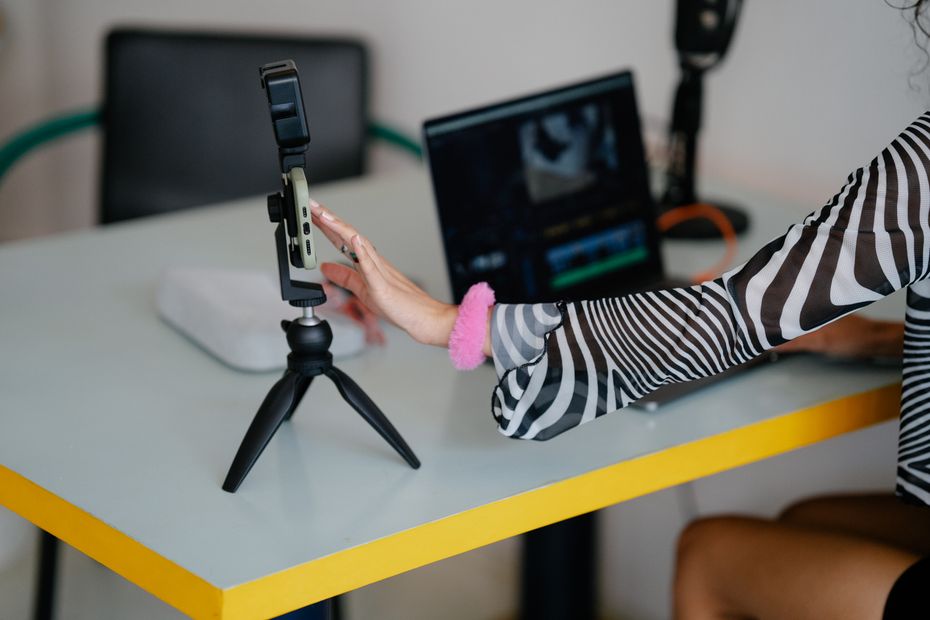
Tips for training videos people finish
- Keep it short: 2–5 minutes per video. Make a series instead of one long video.
- Show the outcome first so learners know where they're heading.
- One step per scene — never show two actions at once.
- Use your company's words for tools, roles and products.
- Add captions for people watching without sound.
What does it cost?
Agencies typically charge hundreds to thousands of dollars per finished minute of animated training video. With an AI whiteboard maker the cost drops to well under a dollar a minute. Every account starts free: 1 AI-generated video, plus 5 free Studio videos every day where you write the script and add your own pictures or free stock photos. No credit card. Pricing is simple: 1 credit = 1 minute of finished video. Plans start at $9.99 a month (12 video-minutes), with one-off credit packs if you don't want a subscription. See pricing.
Summary
- Start with one learning goal per video.
- Script at about 150 words per minute, one step per scene.
- Use whiteboard animation for concepts and processes — it's fast to make and easy to update.
- Keep videos to 2–5 minutes, add a check question, and refresh them when processes change.
- AI can turn an existing SOP or policy document into a narrated training video in minutes.